Drop link: let your clients send their rushes straight to your Drive
No account, no ZIP: the client enters their name, uploads their folders, and everything arrives neatly organized in your team's Drive. Answers to the questions people ask before adopting it.
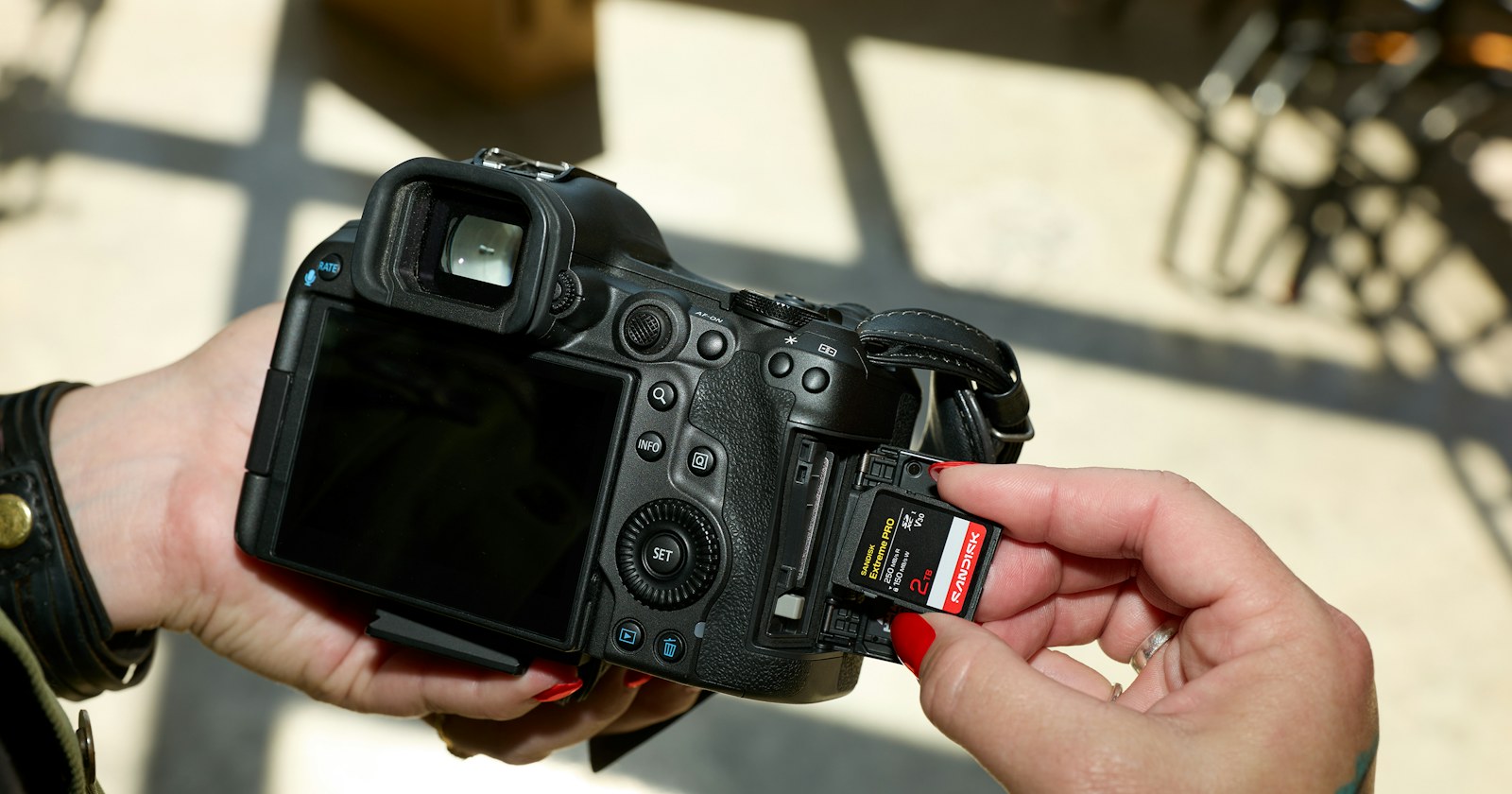
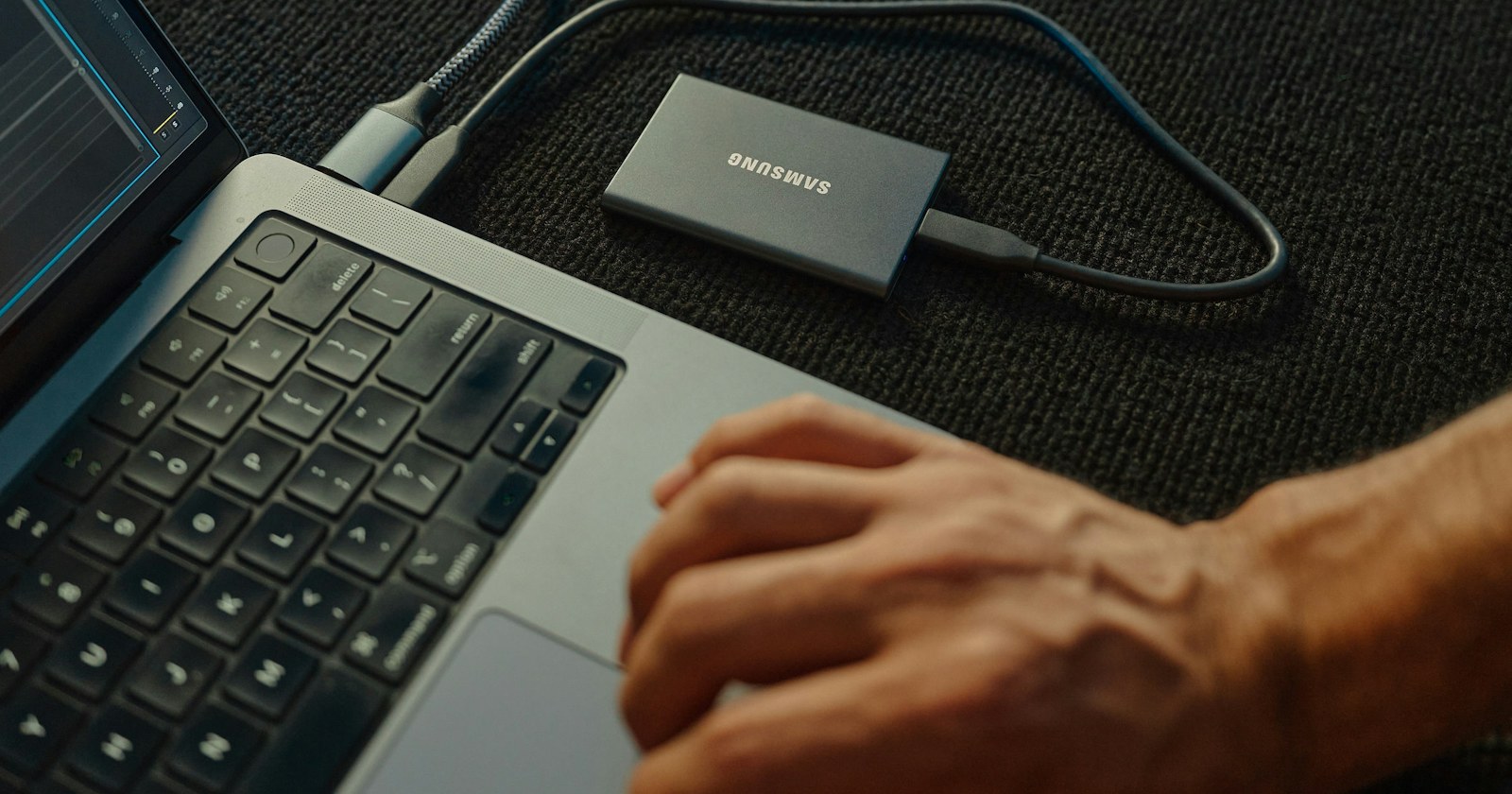
Shoot rushes, wedding footage, source projects, camera cards: getting hold of a client's material is often more painful than the work that follows. Lost emails, sharing links that expire, archives to unzip, renamed folders… A drop link solves most of it. Here are the questions we get asked most often, with clear answers.
What is a drop link?
It is a link that you create and give to your clients or collaborators. Instead of receiving a transfer, you open a door: the person drops in their files and entire folders, and everything arrives on your side. On Misi.Link, it is created in My account › Drop links, with a paid plan.
Does my client need to create an account?
No. They open the link in their browser, on a computer or mobile, without installing anything. The only thing asked for is their first and last name (required). Their email address is optional but useful: if they provide it, they receive a summary of what they uploaded, and you can reply to them directly from the email you receive.

What happens when they upload their files?
You receive an email with the uploader's name and, if they provided it, their email address. The files are then organized according to the destination you have chosen, and this is where the plan matters.
- With the Pro plan: each upload arrives in your account.
- With the Enterprise plan: you choose a Drive folder under "Where files arrive". Each upload is placed there in a "Last name First name — date" folder, with its subfolders, and stays there with no expiration date.
Why does the absence of a ZIP change everything?
A ZIP to unzip is one more step, and sometimes a real problem: you need space for the archive and for its contents, the operation takes time on large volumes, and an interrupted or corrupted archive means asking for everything again. What's more, most video and photo formats are already compressed: a ZIP brings almost no size savings, only extra handling.
Here, files arrive as they are, folder by folder. The editor opens the client's folder in the Drive and can start working, without unzipping anything.
Is the client's folder structure preserved?
Yes. When a client uploads a folder, its subfolders come with it. For a shoot, this means the structure by camera, by day or by media type stays the way the client (or the DIT) intended, and you find each file where you were told it would be.

How do you set it up, in practice?
- Log in with a plan that includes drop links, then open My account › Drop links and create the link.
- With the Enterprise plan, choose the Drive folder that will receive the uploads, for example a "Clients" or "Rushes" folder.
- Send the link to your client through your usual channel, or display its QR code at a meeting or on set.
- Prepare one link per project or per client if you want to keep the arrivals separate.
Your logo, your color and your background image (Pro plan) appear on the drop page: the client knows right away that they are in the right place, with you.
What about privacy?
The connection is encrypted (HTTPS) and files are stored in data centers located in France, subject to European law (GDPR). One thing to know: uploads copied to the Drive are not end-to-end encrypted. This is what makes thumbnails, previews and on-demand ZIP downloads possible; they remain protected by storage encryption. If a project is particularly sensitive, take this into account in how you organize things.
Does the whole team see the uploads?
With the Enterprise plan, the Drive is shared by the team (up to 10 accounts). The administrator chooses "Can edit" or "Read-only" for each member, and the Activity tab shows who added, moved or deleted what. For a confidential client, you can also protect a folder with a code: other members then see only its name. And if someone deletes an item by mistake, it stays in the Drive's trash for 30 days.
What should you ask your clients so that everything goes smoothly?
- Keep the original structure of the folders rather than mixing everything into a single one.
- Provide their email address on the page: the summary serves as proof of upload for both sides.
- Keep a computer on and a stable connection during a large upload, especially on Wi-Fi.
- Not rename the camera card files: this is what lets you find them in the media list.
And for other cases?
A drop link is for receiving. To deliver an edit, get a version approved or send a color grade, you use standard transfers, with preview, approval and frame-accurate comments. The two complement each other: rushes arrive in the Drive, deliverables go out by link.
Try it on a real project
The easiest way is to test it on your next shoot: one link, one client, one "Last name First name — date" folder that fills itself. Check out the plans to see which one suits you, discover all the features, or create your free account to start organizing your files in your Drive.